Small Steps VII — Share Your Program
Share Your Finished Program
Share Your Finished Program
Explore one topic in small steps. Try the examples one at a time and take a break whenever you need. Choose how many extra exercises you want to try.
Publish Your Program
Make a program to share
void small_main()
{
    print("Hello, friend!");
    input("Press Enter to close.");
}
Choose Try This Code, save it as MyGreeting.cpp, and press Run. The last input waits for Enter so you can read the message. A published console program closes when it finishes; the IDE's automatic exit pause is not included.
Make the Windows folder
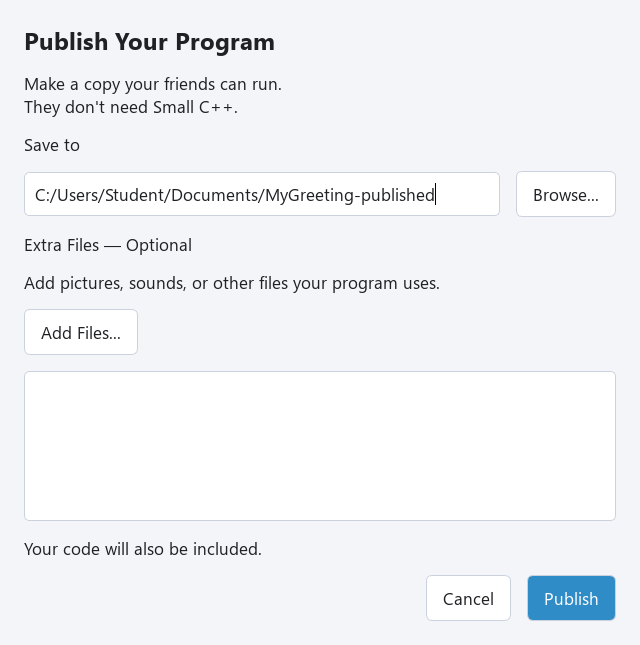
1. Choose File → Publish…. The Publish Your Program window opens. 2. Under Save to, use Browse… to choose where to put the new folder. Choose a folder name that does not exist yet, such as MyGreeting-Published. 3. Leave Extra Files — Optional empty for this program and press Publish. 4. When Your program is ready! appears, choose Open Folder. 5. Double-click MyGreeting.exe, read the greeting, then press Enter.
Publish makes a local Windows x64 copy. It does not upload your work to the Internet. Your friends do not need Small C++, Qt, or a compiler installed. The folder also includes your source code, so they can read how you made it.
Include Extra Files
Files your program reads
Pictures, sounds, and data are separate files when your code loads them by filename. Publish cannot guess which files you need; choose them yourself.
void small_main()
{
    File file;
    file.open("message.txt");
    print(file.input());
    file.close();
    input("Press Enter to close.");
}
Create a plain text file named message.txt, containing one line: Hello from a file! Save it beside your saved MyMessage.cpp, then run the program. If you need help making the text file, use the text-file lessons in Small Steps IV. Check that the name is message.txt, not message.txt.txt.
Add the file to the package
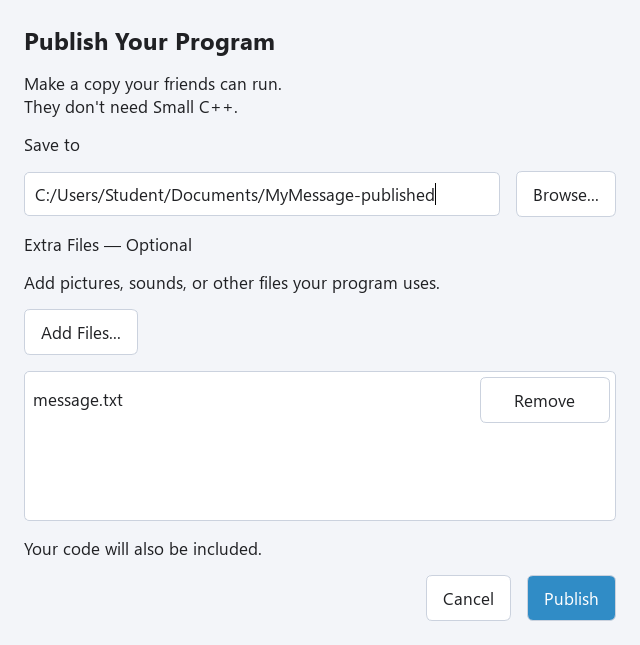
1. Choose File → Publish… and a new destination folder. 2. Under Extra Files — Optional, press Add Files… and select message.txt. 3. Check the list. Use Remove if you added the wrong file. You can press Add Files… again to add more files. 4. Press Publish, then Open Folder. Both MyMessage.exe and message.txt should be in that folder. 5. Double-click MyMessage.exe. Check that it reads your line from the file.
Selected files are copied beside the exe. Use simple English filenames such as picture.png or music.wav, matching your code exactly. This version handles files at that same level; keep resource filenames flat rather than using subfolders. Two files with the same name cannot both be added.
Share with Friends
Make a small greeting card
void small_main()
{
    print("====================");
    print("Hello, friend!");
    print("Made with Small C++");
    print("====================");
    input("Press Enter to close.");
}
Save this as MyCard.cpp. Try it, then publish it to a new folder. Or use a program you finished in an earlier lesson.
Check before sending
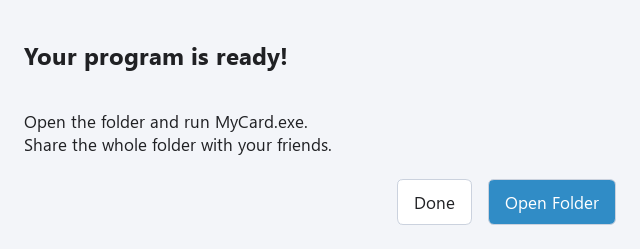
Open the published folder and double-click MyCard.exe. Check the result. If your program uses extra files, check those too. Keep all the files and folders Publish created together, including the DLLs, plugins, and licenses folder. Original source code and relinking materials are not included automatically. You do not need to open or edit the exported files to share the program.
Send the whole folder, not just the exe. The other files help the program run and include library license and source-access information. Only include pictures, sounds, and other materials you have permission to share.
Make a ZIP
1. Close the running program. 2. In File Explorer, go to the parent of the published folder. 3. Right-click the whole folder and choose Compress to ZIP file. On older Windows versions, use Send to → Compressed (zipped) folder. 4. Send the ZIP to your friend using your usual file-sharing method. Some services block executable files, even inside ZIPs; use a method your school or family allows.
Your friend should save the ZIP, choose Extract All…, open the extracted folder, and double-click the exe. Do not run it from inside the ZIP. This package is for Windows x64, not a phone or a Mac. Your friend does not need Small C++ installed.
Exercise — Your own greeting
Change the greeting to a message for your friend. Save the program as MyGreeting.cpp and publish to a new folder. Run the new MyGreeting.exe and check your message.
void small_main()
{
    print("Hello, friend!");
    input("Press Enter to close.");
}
Hint
Change the text inside print's quotes. Keep input at the end. Each Publish needs a new destination folder; existing folders are not overwritten.
show solution
void small_main()
{
    print("I made this program for you!");
    input("Press Enter to close.");
}
Try More (Optional)
Exercise — A second message
Create a second one-line text file named friend.txt beside your source. Change the program to read friend.txt, save it, and publish with friend.txt selected. Test the exe in the published folder.
void small_main()
{
    File file;
    file.open("message.txt");
    print(file.input());
    file.close();
    input("Press Enter to close.");
}
Hint
Change the name in file.open. Changing the code alone does not copy the file: select friend.txt with Add Files too. The same steps work for pictures and sounds your program loads.
show solution
void small_main()
{
    File file;
    file.open("friend.txt");
    print(file.input());
    file.close();
    input("Press Enter to close.");
}
Exercise — Test what your friend receives
Personalize the card below and publish it. Make a ZIP, extract it to a different folder, and run the exe from that extracted copy. If possible, also try it on another Windows x64 computer. Check the name, message, and any extra files before sending it.
void small_main()
{
    print("====================");
    print("Hello, friend!");
    print("Made with Small C++");
    print("====================");
    input("Press Enter to close.");
}
Hint
Change the strings in print. Keep input so the card stays visible. The code below is one possible card; the important check is running the complete extracted package.
show solution
void small_main()
{
    print("====================");
    print("Hello, Alex!");
    print("Have a wonderful day!");
    print("====================");
    input("Press Enter to close.");
}